
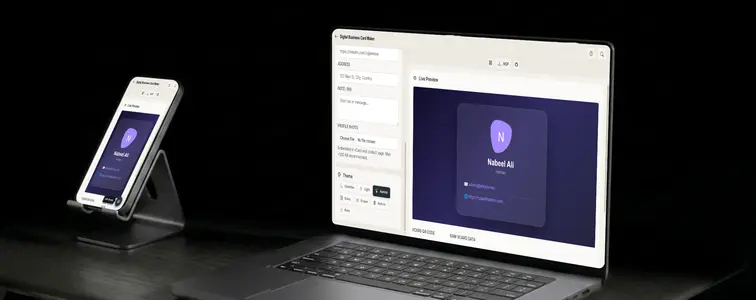
You probably have a stack of business cards somewhere that you never look at. And the cards you handed out? They are either lost, or the contact details on them are already out of date. The paper business card has one genuinely useful trick, which is that it makes exchanging contact details effortless. Everything after that is mostly waste.
A vCard does the same trick digitally. It is a small file, usually ending in .vcf, that any phone or computer can open to offer "add to contacts" in a single tap. No typing your email address character by character, no transcribing a phone number from a photo. Tap, save, done.
The catch is that nobody wants to hand-write a vCard file, and most online tools either watermark the output, charge for the QR code, or quietly upload your contact info to their servers. The Contact Card (vCard) Maker in MockupTown on this site does all three of those things differently.
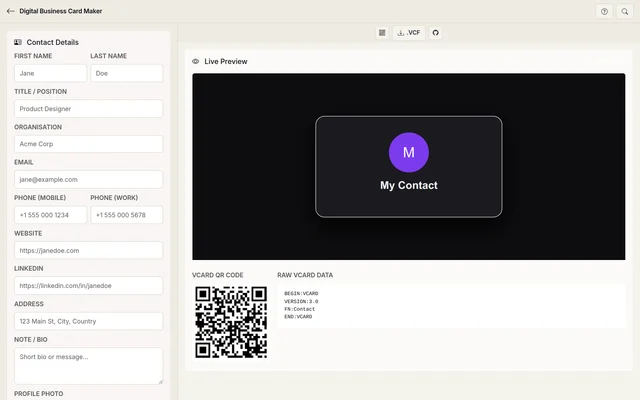 Digital Business Card Maker.
What a vCard actually is
A vCard is an open, universal standard for contact data. It has been around for decades, which is exactly why it works everywhere. Your phone's contacts app reads it, your email client reads it, your cloud address book reads it. When someone opens a .vcf file, their device asks if they want to save the contact. That is the whole interaction, and it works on iPhone, Android, Windows, and macOS alike.
Inside the file is plain text that looks like this:
BEGIN:VCARD
VERSION:3.0
FN:Jane Doe
TITLE:Product Designer
ORG:Acme Corp
TEL:+1 555 000 1234
EMAIL:[email protected]
END:VCARD
Simple enough to read, but fiddly to write by hand. Get one line wrong and the file is rejected. That is the problem the tool solves.
From details to a downloadable card
1. Fill in your details
Open the Contact Card Maker and work through the form on the left. Every field is optional, which is worth knowing if you only want a card with a name and a phone number. For a full card you can add:
- First and last name
- Job title and organisation
- Email address
- Mobile and work phone numbers
- Website and LinkedIn URL
- Physical address
- A short note or bio
There is also a profile photo field. If you add one, it gets embedded inside the vCard itself, so when someone saves you to contacts your picture comes along with it. Keep the photo under 200 KB or so. vCard files are meant to be small and instantly shareable, and a giant photo makes the file sluggish to open on some phones.
2. Pick a theme
The tool builds two things from your details: the .vcf file and a matching contact page. The contact page is the part people see when they open your link, so it is worth choosing a look you like. There are seven themes to flip through, from Obsidian (dark) and Light to Aurora, Glass, Ocean, Nature, and Rose. The preview on the right updates as you click, so you can compare before you commit.
3. Download the vCard and QR code
Two buttons in the toolbar handle the downloads. One saves the .vcf file, which you can send by email or messaging, drop into a folder, or attach anywhere a contact file belongs. The other saves the QR code as a PNG.
The QR code is worth a closer look, because it is generated automatically from your vCard data. Someone scans it, their phone reads the whole contact card, and it offers to save you. No app, no signup, no app store detour. It just works on any phone camera.
4. Publish the contact page
If you want a shareable link for your card, the tool has a GitHub Pages deploy button. Click it, sign in to GitHub, and the tool pushes a ready-to-host contact page to your account. The result is a free, permanent URL for your card that you can put in your email signature, Instagram bio, LinkedIn profile, or on a printed QR card. Your contact page stays up to date, and since it is just a static HTML file, there is nothing to maintain.
Why the QR code is the useful part
Cards get lost, but a photo of a QR code is hard to lose. Print the QR on a physical card, a name badge, a flyer, or a table card at an event, and you have a contact exchange that survives the moment. People scan it right then, save your details, and you are in their address book before the conversation is over.
The same QR works on a screen. Put it at the end of a presentation, on a vendor booth, or in a wedding welcome packet. Someone holds their camera up, scans, saves. That is the entire funnel, and it converts far better than "email me and I will send my details."
The moments a card actually gets used
- Networking events and conferences. Instead of carrying a box of cards, hand over a QR badge or share the link. The card cannot run out and it never goes out of date.
- Freelancers and consultants. Send a polished contact page to a potential client along with your proposal. One link carries your name, phone, email, website, and LinkedIn, and the client can save you to contacts in one tap.
- Email signatures. Attach the vCard file to your outgoing mail, or add the QR image at the bottom. Every email becomes a chance to land in someone's address book.
- Social media bios. A single link in your bio replaces the awkward "for business inquiries DM me." Direct people straight to your contact page.
- Weddings and events. Print QR cards for guests, vendors, and suppliers. No paper business cards needed anywhere.
The privacy note
Everything here runs in your browser. Your name, phone number, and email never touch a server unless you explicitly hit the GitHub deploy button. If you are the kind of person who does not love typing their personal details into random websites, this is the version you can feel okay about.
The honest caveats
The .vcf format is old and, to be blunt, a little rigid. Some email clients mangle vCards in attachment, though virtually all modern phones handle them fine. Your photo needs to stay reasonably small, as mentioned above, because not every contact app appreciates a 5 MB vCard. And the GitHub deploy step obviously needs a GitHub account. If you want none of that, the plain .vcf download works without any account at all.
A minute to build, forever to use
Building your own digital business card takes about a minute, and you have nothing to lose by doing it once. You might even stop carrying paper cards entirely.
Open the Contact Card Maker, fill in your details, download the .vcf and the QR code, and share them wherever you used to hand out cards.
Made with MockupTown, the free all-in-one mockup generator.
Frequently asked questions
What is a vCard /.vcf file?
A vCard is the universal standard for digital contact cards. When someone opens your.vcf file on any phone or computer, they can instantly add you to their contacts.
What does the QR code contain?
The QR code encodes your full vCard data. When someone scans it, their phone offers to add you to contacts immediately, no app required.
Is my data stored anywhere?
No. Everything is generated in your browser. Your contact data never leaves your device unless you choose to deploy to GitHub Pages.
How many themes are available?
Seven. Obsidian, Light, Aurora, Glass, Ocean, Nature and Rose, each giving the contact page a different look.