
Combining PDFs into a single file sounds like a two-second job. Then you open one of those "free" online merge tools, upload your files, and start wondering where they actually went. For most documents that is a non-issue. For contracts, bank statements, medical records, or anything else with personal details in it, it should matter to you.
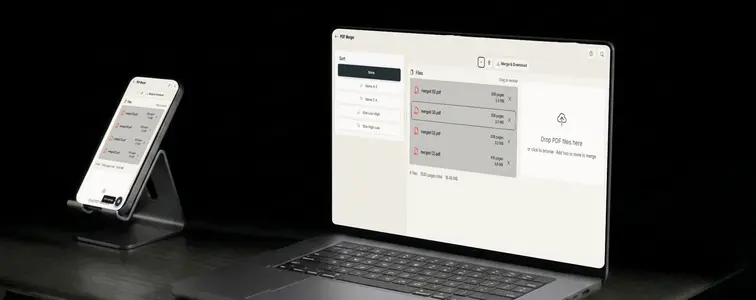
The Merge PDF tool in MockupTown does the job entirely in your browser. No files are uploaded anywhere, no account is needed, and the combined document downloads the same second you ask for it.
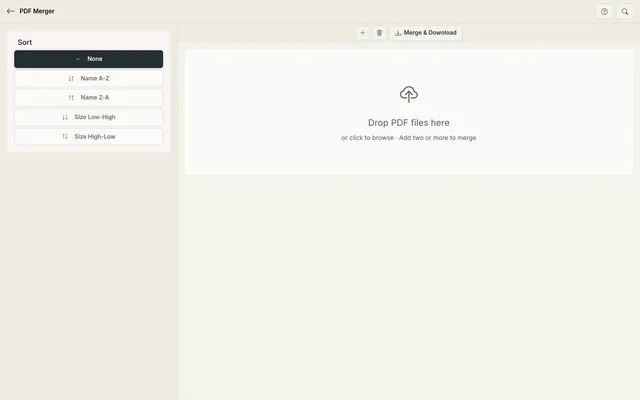 Drop zone and file list on the left; page previews on the right. Nothing leaves the browser.
How the merge actually works
The tool uses a library called pdf-lib that runs locally on your machine. Your browser reads the PDF files you select, combines them page by page, and produces a brand new file without ever sending the originals over the network.
If you have used a server-based merge site before, you can probably guess the difference. There is no upload progress bar, no "your files are being processed" spinner, and no vague promise that the copies will be deleted later. The files simply never go anywhere. Even if you have a slow connection, or no connection at all after the page loads, the merge still works.
Merging files in three steps
1. Drop your PDFs in
Open the tool and drag your files onto the dashed drop zone. You can also click the zone to open your file picker and select multiple PDFs at once, or add files one at a time as you think of more.
Once files are loaded, each one shows up in a list with two useful details next to it: the number of pages and the file size. The page count alone is worth checking, because it is an easy way to confirm you grabbed the right version of a document. The file with 4 pages is clearly not the same as the one with 40.
2. Put them in the right order
Files merge in the order they appear in the list, all pages of the first file followed by all pages of the second, and so on. You get two ways to control that order:
- Drag and drop. Grab a file and move it up or down the list. This is fastest when you are shuffling two or three files.
- Sort dropdown. The left panel has sort options to order by name (A-Z or Z-A) or by size (low to high or high to low). If your files follow a naming scheme like
01-cover.pdf,02-terms.pdf,03-signature.pdf, one click lines everything up.
One thing the tool does not do is reorder pages inside a single file. It merges whole files in the order they sit in the list. If you need to interleave pages from different documents, upload each page as its own PDF file and arrange those instead.
3. Merge and download
Hit the Merge & Download button. The combined file is generated on the spot and downloads straight to your browser. Drop, order, download. That is the entire workflow, and it takes about as long to do as it does to read this paragraph.
The jobs this gets pulled in for
Some of the jobs this tool gets used for most:
- Scanned stacks. Scanner apps love exporting every page as its own PDF. A pile of 20 scanned pages becomes one neat document in seconds, instead of 20 attachments in an email thread.
- Invoice and receipt archives. Monthly invoices combined into a single file make accounting, tax season, and expense reports far easier to deal with later. One file per year beats forty files in a folder.
- Contracts and proposals. Cover page, terms, appendices, signature page. Combine them and send one attachment instead of four, and the person on the other end actually reads the whole thing.
- Presentation handouts. Slides, speaker notes, and a summary page in a single PDF the audience can flip through on a phone.
- E-books and compilations. Merging chapters, cover art, and an appendix into one file that you can actually share with someone without a zip file.
What actually happens to your files
The short version: nothing. They never leave your device.
This is the part worth repeating, because the default on the internet is the opposite. A lot of merge-PDF websites upload your documents to their servers, process them there, and ask you to trust that the copies get deleted afterward. Sometimes they do. Sometimes they end up stored indefinitely, used for training, or leaked in a breach. There is a reason sensitive document handling is a whole compliance industry.
With a browser-based tool, there is no copy of your document anywhere except the one you chose to merge. That also makes it trivially auditable: if the tool ever stopped working, you lose nothing and leak nothing. The worst case is you open a different tool.
There is a practical side effect to local processing too. Because nothing gets uploaded, there is no arbitrary file size limit. The real ceiling is your browser's memory, which on a modern machine means files well into the hundreds of megabytes. Most online merge tools cap out at 25 MB or 50 MB because that is what their servers can handle.
A couple of honest limitations
- PDFs only. The tool accepts PDF files. If you are trying to combine a mix of images and documents, it will not work. The Image Combiner is the better fit for image collages.
- Whole-file merging. You cannot split, rotate, or remove individual pages here. If you need that level of control, a desktop editor such as PDFsam, or the free tier of a full PDF application, will serve you better.
- Secured files can fail. Password-protected or encrypted PDFs may refuse to merge. If a file gets rejected, that is the first thing to check.
Why not just use a desktop app?
Honestly, you can. A desktop tool will happily merge your PDFs too, and it is just as private. The arguments for the browser version are small but real. There is nothing to install, it works on any operating system with a browser, and it is the same tool whether you are on your work laptop, a shared computer, or a machine you do not own.
The download is also instant. Desktop apps need to launch, remember their licensing state, and occasionally nag you to update before they will run. The browser version has none of that overhead. Open the page, drop files, done.
When the order really matters
A tip that saves people time: name your files in the order you want them merged, then use the name sort. Say you are assembling a tax folder. Rename the files 01-income.pdf, 02-expenses.pdf, 03-deductions.pdf before you drag them in, and the sort dropdown does the rest. It is a small habit, but it turns "let me arrange ten files by hand" into a single click.
The same trick works for presentations, manuals, and multi-chapter documents. If a file name already carries its position, you never have to think about ordering again.
Keep it bookmarked
If you regularly work with PDFs, keep this one in your bookmarks. It is free, it is fast, and your documents stay on your machine.
Open the Merge PDF tool, drop in two or more files, and download the combined result. No signup, no uploads, no waiting.
Made with MockupTown, the free all-in-one mockup generator.
Frequently asked questions
Are my PDFs uploaded to a server?
No. Everything is processed in your browser using pdf-lib. Your files never leave your device.
What is the maximum file size?
Since everything runs locally, the limit depends on your browser's available memory, which is usually plenty.
Can I reorder pages within a file?
Currently this tool merges files page by page in order. For per-page reordering, upload each PDF individually and arrange the files in your desired order.
What file types can I merge?
Only PDF files are supported. Each file must be a valid PDF document.