
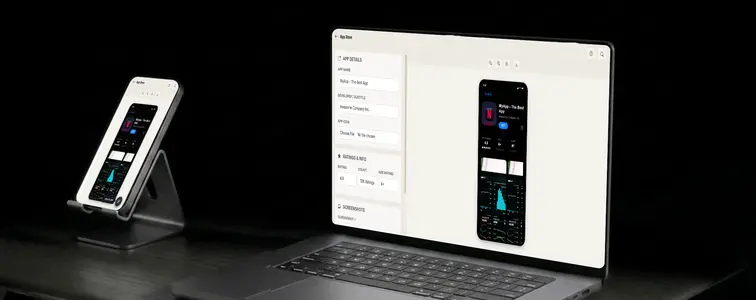
If you have ever worked on an app, you have sat through the App Store listing conversation. The icon, the subtitle, the screenshots, the ratings. And then someone says the phrase that starts the whole thing: "let's mock up what it would look like." Because the listing is the sales page, and nobody ships a sales page without seeing it first.
The problem is that an App Store listing is a very specific UI, and a hand-built mockup usually ends up looking like a website that stole App Store ideas. The App Store Mockup Generator in MockupTown renders the actual listing layout, with the icon, the subtitle, the age rating, the rating stars, the screenshot row, and the blue GET button, all in place.
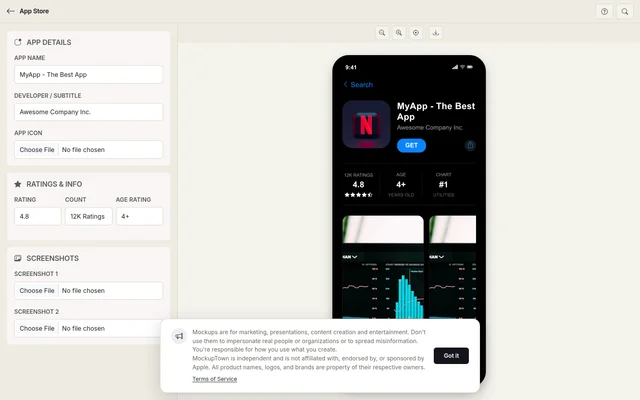 Listing fields on the left; the rendered App Store page with icon, ratings and GET button on the right.
The listing is a sales page, not a screenshot
An App Store listing gets judged the way a sales page gets judged: icon, subtitle, screenshots, ratings, and a call to action. The GET button is the call to action, and everything above it exists to make someone tap it. A mockup that gets the layout right lets you evaluate those elements before the app is anywhere near review.
The details people actually scan
- The subtitle is the ranking factor. It is indexed by App Store search, and it is the first line read under the app name. "Plant care reminders" does more work than a sentence-long description.
- The screenshots are the conversion lever. They render in device frames in a horizontal scroll, and most people judge the app on them before reading anything else.
- The rating is the trust signal. The stars, the number, and the review count decide trust at a glance.
- The GET button is the anchor. The blue button is the one thing everyone recognizes about the iOS store, and it is what makes the mockup read as a real listing instead of a website pretending to be one.
Building a listing without a design tool
Enter the app name, subtitle, and age rating. Upload a square icon, and the generator applies the iOS rounding and sizing so the icon sits the way it does in the store. Add up to two screenshots, which get framed in device-style mockups the way the store presents them. If the app is still in development, placeholder screens still show the layout, and real ones can drop in later. Set a rating and review count, then export as a high-resolution PNG. All processing happens on your device.
What stops it looking like a mockup
- Keep the subtitle a phrase, not a sentence. That is its job in the real store, and the mockup should show it doing that job.
- Make the rating realistic. A brand new app at 4.9 with 20,000 reviews looks off. Scale the numbers to the story.
- Show real screens when you have them. The screenshots drive installs, so the mockup is most useful with your actual app screens in place.
- Let the icon sit like it is already in the store. Rounded corners and correct sizing separate an icon from a loose square.
- Check the age rating. It should match the audience, or it draws the wrong kind of attention.
Where a listing mockup earns its place
- ASO work. Preview the listing before it goes live and iterate on subtitle, icon, and screenshot choices.
- Pitches. Investor decks and product updates show the product in its store context.
- Launch announcements. The listing screenshot is a social media format app users recognize instantly.
- A/B testing. Mock up different subtitles, icons, or screenshot combinations side by side, since each one is a real conversion lever.
- Documentation. Guides about app store strategy are easier to follow with a concrete example.
An important caveat: is short: this mockup is for your own listing, or a demo of one. Pretending a real app in the store has a rating or review count that it does not have is the line, and it is not worth the trouble it would cause.
When you need the exact page
When your app needs a store listing visual, whether for ASO work, a pitch, or an announcement, you can build the exact page in a couple of minutes.
Open the App Store Mockup Generator, set the details, add your icon and screenshots, choose a realistic rating, and export the listing as a PNG.
Made with MockupTown, the free all-in-one mockup generator.
Frequently asked questions
How much does App Store Screenshot Generator cost?
Zero cost at every step. There are no server bills to cover, hence nothing to bill you for.
Is commercial use allowed?
Yes, and no paid tier gates it. Files exported on the free tier carry identical usage rights to those made on Pro.
What about accounts or logins?
Accounts simply do not feature here. Identity, email, password: none of those words appear anywhere in the interface.
What image sizes work best?
For best results, use a square image for the app icon and tall images for the screenshots. The tool handles most common formats.