
QR codes went from a joke to a necessity over the last few years. Menus, wedding invites, event badges, product packaging, delivery boxes, table numbers, raffle tickets. Everywhere you look, someone has pointed a camera at a square and expected it to work.
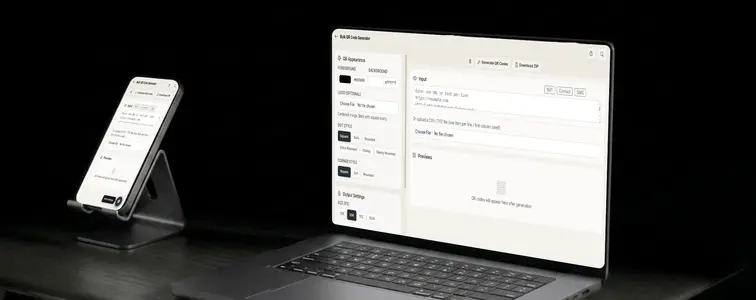
If you only ever need one QR code, most free QR tools will do. The pain starts the moment you need twenty, or fifty, or five hundred. Generating them one at a time means copying the same URL into a form twenty times, downloading twenty images, and renaming every file. That is a waste of an afternoon, and it is exactly the job the Bulk QR Code Generator in MockupTown exists to kill.
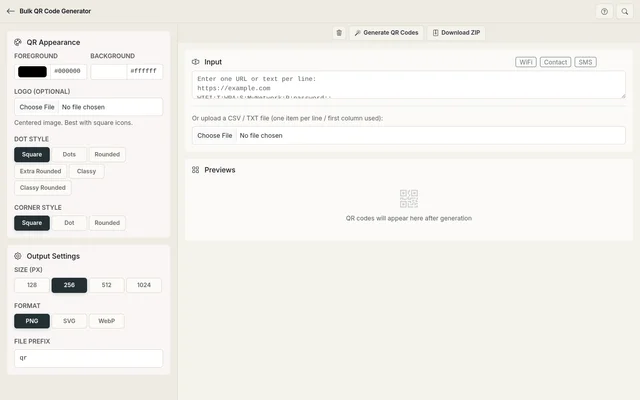 Bulk QR Code Generator.
One line becomes one code
The input is a text box. You paste one thing per line, and every line becomes its own QR code. Ten lines, ten codes. A thousand lines, a thousand codes. No repeated form filling, no per-code uploads.
Each line can be almost any text, but the tool is built around the formats people actually use:
- URLs. The most common.
https://yoursite.com/table-1on one line,https://yoursite.com/table-2on the next. - Plain text. A name, an address, a serial number, or any short string of text.
- Wi-Fi credentials. The
WIFI:T:WPA;S:MyNetwork;P:password;;format works, so you can print a code that connects a guest phone to your network in one scan. - SMS prompts. Text that composes a pre-filled message on the scanner's phone.
You do not need to set anything special up. Just paste the values, one per line, in whatever order you want the codes in.
From a list to a finished batch
1. Paste your data
Open the Bulk QR Code Generator and paste your list into the input area. Each line is one code. If you are generating codes for a dinner with twelve tables, that is twelve lines like https://example.com/menu, https://example.com/menu?table=2, and so on.
2. Make them look like yours
QR codes default to black-on-white, which is fine but anonymous. The tool gives you a few ways to brand them:
- Colors. Pick a foreground and background color. Dark-on-light works best, and your brand color as the foreground looks sharp.
- Dot style. Square is the classic look, but you can switch to dots, rounded dots, extra rounded, or the fancier classy styles for a softer appearance.
- Corner style. The three big corner squares can stay square or go round.
- Logo. Upload a square icon or logo and it gets centered in every code. This is the difference between "generic QR" and "obviously your brand."
One honest warning: QR codes are error-tolerant, but only up to a point. High contrast between foreground and background matters a lot for real-world scanning. A dark color on white, or a light color on black, will scan reliably. Two similar colors next to each other look nice and fail at the worst possible moment, like at a venue entrance. And keep the logo reasonably small, since a big logo eats into the data area and makes the code harder to read.
3. Set the output
Three output settings matter depending on where the codes end up:
- Size. 128, 256, 512, or 1024 pixels. For screen use, 256 is plenty. For anything printed, go 512 or 1024 so the code stays crisp.
- Format. PNG for photos and web, SVG if you want a fully scalable vector for print, or WebP if you want smaller files.
- File prefix. Every downloaded file gets this prefix, so
qr-table-1.png,qr-table-2.png, and so on instead of 200 files all calledQR_Code.png.
That file prefix is one of those details you do not care about until you try to find one specific code among three hundred identically named downloads.
4. Generate and download
Click Generate QR Codes and the grid renders instantly, with every code side by side for a quick sanity check. Then download the whole batch as a ZIP in one click, or grab individual codes from the grid.
The jobs that need dozens at once
- Product packaging. A unique code on every product linking to the manual, registration page, or a promo. Unique codes mean you can tell which box each scan came from.
- Marketing campaigns. Hundreds of landing-page or tracking codes generated in one go, exported as SVG so they print cleanly.
- Events and tickets. Codes for badges, tables, and raffle tickets, styled to match the event branding.
- Menus and restaurants. Print codes that take diners straight to the menu, reviews, or the ordering page. The Wi-Fi code for the shop can sit right next to them.
- Inventory and asset tags. Codes for equipment, boxes, and shelves that you can scan while doing a count, with each item carrying its own unique code.
Where the lines never leave your device
As with everything on this site, the generation happens in your browser. The tool uses the QRCodeStyling library locally, so your URLs, text, and Wi-Fi passwords never leave your device. If you are printing Wi-Fi credentials for your home network, that is not a detail you want floating through someone else's server.
Static codes, on purpose
These are static QR codes. Once you generate one, the content is baked in. There is no dashboard to change the destination URL later, which is the classic "dynamic QR" feature that paid services charge extra for. If you might need to redirect codes later, you need a dynamic solution. But for a menu, an invite, a table card, or a one-off campaign, a static code that just works is usually all you need.
When thirty codes are due tomorrow
Next time someone needs thirty QR codes by tomorrow, you know the drill. Paste the list, style them once, and download the whole batch.
Open the Bulk QR Code Generator, drop in your list, and generate as many codes as you need in one go.
Made with MockupTown, the free all-in-one mockup generator.
Frequently asked questions
What can a QR code contain?
Any text, but it works best with URLs, plain text, Wi-Fi credentials (WIFI:T:WPA;S:...), and SMS prompts. Each line in the bulk area becomes its own code.
How many QR codes can I generate?
There is no hard limit. For very large batches the browser may need a moment to render the full grid.
Are my QR codes stored on a server?
No. Everything is generated locally in your browser. Your data never leaves your device.
Can I add a logo to every code?
Yes. Upload a logo and it is centered on every code in the batch, matching your brand.