
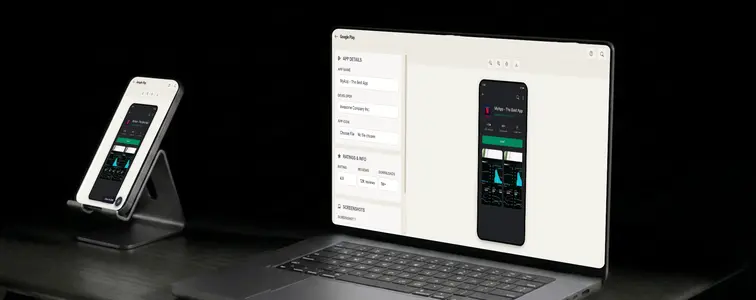
Android and iOS listings look alike at a glance and nothing alike on inspection. The App Store has the blue GET button and the clean white page. Google Play has the green Install button, the download count, and a darker, denser layout. If you are building a listing mockup for an Android app and you use the iOS template, everyone who has ever opened Google Play will notice.
The Google Play Mockup Generator in MockupTown renders the actual Play Store listing, with the details that make it read as Android: the developer line, the download stats, the green install button, and the dark theme that the store uses on Android devices.
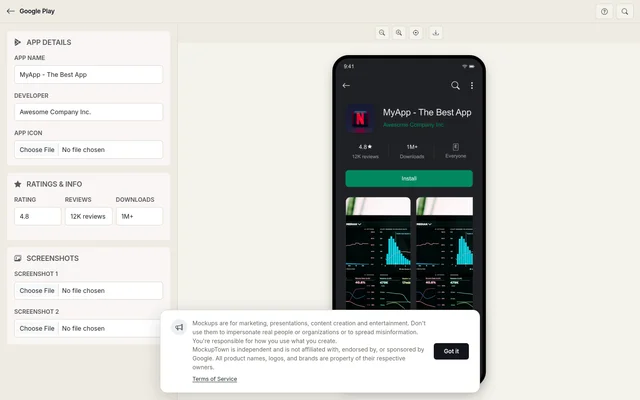 Google Play Screenshot Generator.
Android and iOS look alike until they do not
Android and iOS listings look alike at a glance and nothing alike on inspection. The App Store has the blue GET button and the clean white page. Google Play has the green Install button, the download count, and a darker, denser layout. If you build a listing mockup for an Android app and reach for the iOS template, everyone who has ever opened Google Play will notice.
The details that make it read as Android are specific: the developer line, the download stats, the green install button, and the dark theme the store uses on Android devices.
The download count is a Google Play tell
The download count is one of the first numbers people scan in a Play Store listing, and it is a distinctly Google Play detail. It is also the easiest way to sink a mockup. A brand-new app showing "10M+ downloads" is the kind of inconsistency that gets a mockup noticed. Match the count to the app's stage: a new app at "1,000+" reads as realistic, "100M+" does not.
The rating carries the trust
The star rating and review count anchor every Play Store decision, the same way they do on the App Store. In a mockup they are whatever you need them to be, which means the realistic choice is the one that matches the story. A listing with a modest download count and a suspiciously perfect rating looks as off as the opposite.
Building a listing that holds a second look
Enter the app name, developer, and download count. The developer name displays prominently on Play Store listings, and it should be consistent with the story. Upload a square icon. The generator applies the rounded corners and Android sizing, so it sits in the listing the way it will in production. Add up to two screenshots, framed in device-style mockups in a horizontal scroll, the way the store presents app previews. If the app is still in development, placeholder screens show the layout and real ones can replace them later. Choose the star rating and review count, then export as a high-resolution PNG. The whole thing happens in your browser.
The details that keep it native
- Use square icons and tall screenshots. The Play Store expects square icons and phone-ratio screenshots, and the mockup is built around those shapes.
- Show real screens when you have them. The screenshots drive installs, so the mockup is most useful with your actual app screens in place.
- Let the dark theme do its work. The dark background and green accents are what make the mockup unmistakably Google Play.
- Use your own developer name. The listing should represent your actual app, with your actual developer identity.
Where a Play Store mockup earns its place
- App marketing. Preview your Android listing as part of store optimization, and iterate on the visual before submission.
- Presentations. Pitch decks and product updates use Play Store mockups to show the product in its store context.
- Documentation. Guides on Android app store strategy are clearer with a concrete listing example.
- Social media. App launch announcements are shared as Play Store screenshots, a format Android users recognize instantly.
- A/B testing. Compare different subtitles, icons, or screenshot choices side by side, since each is a conversion lever.
One rule to follow: is the same as the App Store one: mockups are for your own listing or for demonstrations. Implying a real app has a rating, review count, or download number it does not have is the line to avoid.
When you need the exact listing
When your Android app needs a store listing visual, you can build the exact page without touching a design tool.
Open the Google Play Mockup Generator, set the app details, add your icon and screenshots, pick a realistic rating and download count, and export the listing as a PNG.
Made with MockupTown, the free all-in-one mockup generator.
Frequently asked questions
Is Google Play Screenshot Generator free to use?
It does not cost anything. The editor runs entirely in your browser, so drafts stay on your machine.
Can I use the results commercially?
Go ahead and ship them. Campaigns, decks, landing pages, merch: no licensing strings attached.
Do I need an account?
No. A signup form was never designed in; the tool runs from static files in your browser.
What image sizes work best?
For best results, use square images for app icons and tall images for screenshots.