
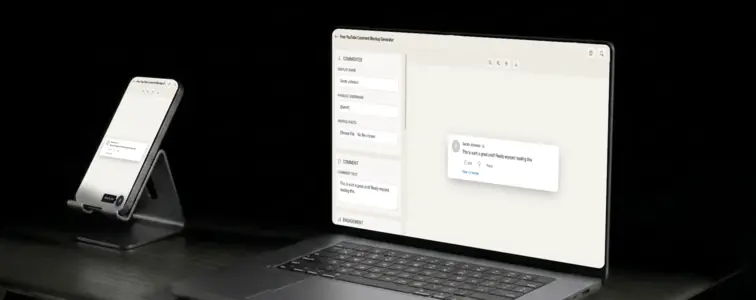
YouTube comments are one of the internet's most recognisable visual formats. The profile picture, the username, the like count, the reply button, the timestamp. When someone sees a comment card in YouTube styling, they immediately understand the context: this is a reaction to a video, and it carries the weight of the YouTube platform behind it. That instant recognition is what makes a YouTube comment mockup valuable.
The problem is that building a convincing YouTube comment card by hand is tedious. The details are specific: the font sizes, the spacing, the exact way the like count sits next to the thumbs-up icon, the way verified badges appear as small grey lozenges, the red creator heart that signals a channel owner's appreciation. Get any of these wrong and the mockup looks assembled rather than genuine. The YouTube Comment Mockup Generator in MockupTown renders the actual layout, so your mockup looks like it was pulled straight from a real video page.
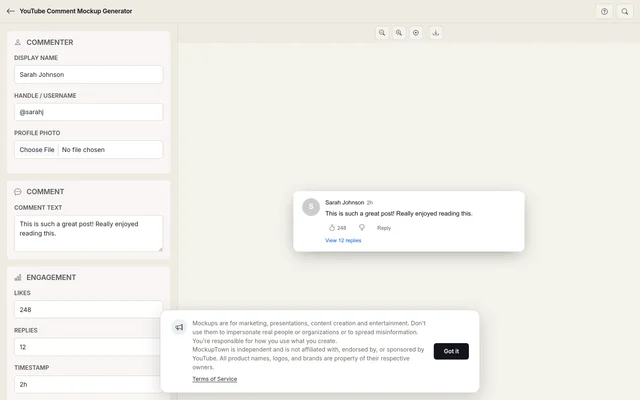 Comment fields on the left; the rendered YouTube comment card with likes and badges on the right.
Why YouTube comments carry weight
YouTube is the second most visited website on the internet. Billions of comments are posted every month, and the comment section under a video is where the community conversation happens. When someone sees a comment in YouTube styling, they associate it with a specific kind of engagement: a viewer watched a video, had a reaction, and took the time to write about it.
That association is what makes the format powerful for content creators and marketers. A YouTube comment mockup communicates that something is worth talking about. It suggests engagement, community, and relevance. Building a pitch deck, creating a thumbnail, or writing a blog post about online communities all benefit from a realistic YouTube comment visual that does more work than a paragraph of text.
The anatomy of a YouTube comment
A YouTube comment has a specific structure that the generator reproduces accurately:
- The profile picture. A circular avatar on the left side. This is the first thing the eye catches, because humans are drawn to faces. The avatar anchors the comment to a person.
- The author name and badge. The display name sits to the right of the avatar, with an optional verified badge for channels that have been verified by YouTube. The badge is a small grey lozenge with a checkmark.
- The timestamp. Below the author name, showing when the comment was posted. YouTube uses relative timestamps like "2 hours ago" or "3 weeks ago."
- The comment text. The main body of the comment, in a slightly smaller font than the author name. This is where the content lives.
- The action row. Like count, dislike button, and reply button. The like count sits next to a thumbs-up icon, and the reply button is a simple text link.
- The creator heart. An optional red heart icon that appears when the video creator has "hearted" the comment. This is one of the most powerful engagement signals on YouTube.
Hearts and replies signal engagement
The creator heart is YouTube's way of showing that the channel owner noticed and appreciated a specific comment. It appears as a small red heart next to the like count, and it carries significant weight because it represents a direct interaction between the creator and the community.
When someone sees a comment with a creator heart, they read it differently. It feels endorsed, noticed, and valued. That is why the creator heart is one of the most requested features in comment mockup tools. The generator lets you toggle it on or off, so you can show the difference between a regular comment and one that has been hearted by the creator.
The details that separate a good mockup from a bad one
- Use the right font. YouTube uses the Roboto font family, which is Google's system font. A mockup that uses a different font immediately looks off.
- Match the spacing. YouTube's comment section has specific padding and margins that create a clean, airy feel. Too much or too little spacing breaks the illusion.
- Set realistic engagement numbers. A comment with 50,000 likes on a video with 100 views does not make sense. Keep the numbers proportional.
- Use relative timestamps. YouTube shows "2 hours ago" or "3 weeks ago," not absolute dates. The generator handles this automatically.
- Add the verified badge sparingly. Not every commenter is verified. Use it for brand accounts or notable channels.
Where a YouTube comment mockup earns its place
- Video thumbnails. Creators use comment screenshots in thumbnails to tease engaging discussions. A realistic comment mockup lets you design the perfect thumbnail without waiting for the right comment to appear.
- Pitch decks. When presenting to sponsors or partners, showing realistic comment engagement demonstrates community activity. The YouTube format is instantly recognisable.
- Blog posts and articles. Writers covering YouTube culture, creator economy, or social media trends need comment visuals. A mockup gives the article a professional feel.
- Social media strategy. Marketers use comment mockups to illustrate engagement strategies, community management approaches, or content performance projections.
- Educational content. Teachers and course creators use comment mockups to show students how YouTube engagement works, without pulling real data from real channels.
A note on proper use: is important: comment mockups are for presenting your own work, designing thumbnails, and illustrating concepts. Using them to mislead viewers about community sentiment crosses a line that is not worth crossing.
Building a YouTube comment in two minutes
Open the YouTube Comment Mockup Generator, enter the commenter name, profile photo, comment text, like count, and timestamp. Toggle the verified badge and creator heart on or off. Pick light or dark mode. Export as a high-resolution PNG. Built entirely in the browser.
The generator uses the actual YouTube comment layout, with the Roboto font, the correct spacing, and the accurate colour palette. The result looks like a screenshot from a real YouTube video, not a hand-built approximation.
Whenever a comment visual would strengthen the story, you can build the exact card instead of describing it. Open the YouTube Comment Mockup Generator, set the details, and export a mockup that looks like it belongs in the actual comment section.
Made with MockupTown, the free all-in-one mockup generator.
Frequently asked questions
Can I add a creator heart to the comment?
Yes. The generator adds the heart toggle automatically.
Does it support reply threading?
You can set a reply count below the main comment. The mockup displays "N replies" in YouTube's threaded style.
Can I show the "pinned by creator" label?
Yes. Toggle the pinned status and the mockup adds the "Pinned by" line above the comment, matching YouTube's pinned format.
Will the avatar crop into a circle?
Yes. The avatar image you provide is automatically cropped into a circle, matching YouTube's circular avatar style.